The Booking Process
How to Create a Booking / Appointment online
There are 3 ways to make a booking:
An email with a Booking Link, attached QR Code and a Booking Code was emailed to you by Vaxicare
Select the original Booking Link (URL) emailed to you - One Click email URL
QR Code - Scan by Mobile Device Camera to select the URL
Booking Code - Two Clicks, select this URL and enter the 10 Digit Booking Code.
Attendees are empowered to book, change or cancel appointments, supplying their own private Medical Details. Daa is stored in accordance with the VaxiCare Medical Data Privacy & Security Policy.
Accuracy is important in order to receive Clinic updates and Proof of Vaccination.
Please note, due to Security and Australian Medical Data Regulation, our booking system is not available overseas, please contact VaxiCare to assist you if you have issues booking, changing appointments or located overseas.
Health Data Management Consent Policy
Select the Accept and Continue Button after reading the Policy
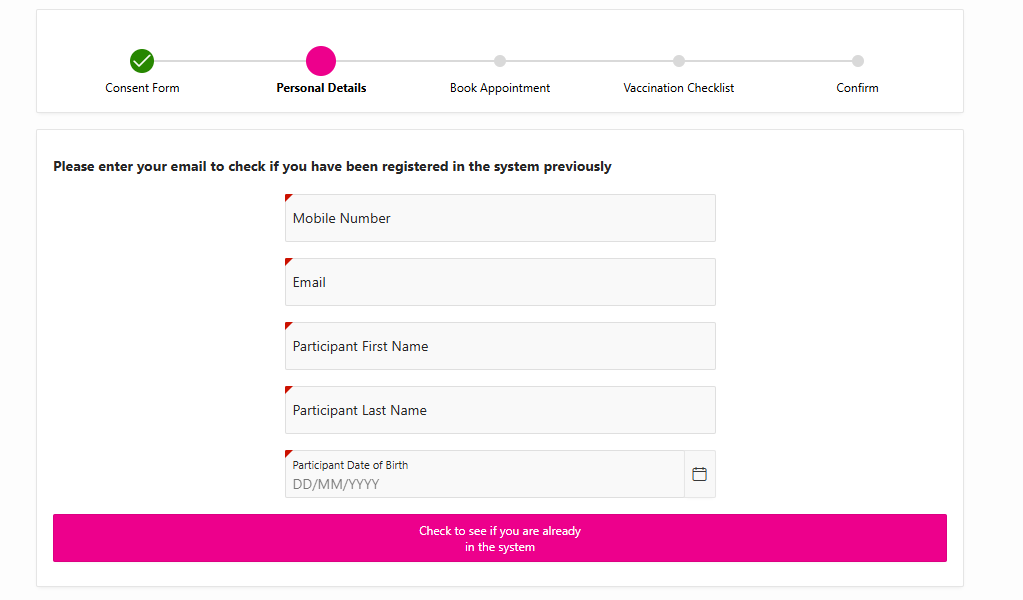
Check if your details are already recorded in the System
If you booked last year, you need to specify the exact Mobile, Email, First & Last Name, DOB you used to book in previously. Click the pink Check to see if you are already in the system button at the bottom of the screen. If successful, you will receive a security authentication code by phone and email to enter into the system. Please email Vaxicare to assist if you can’t remember your exact details.
If booking for the first time, enter the details required and Select the pink Check to see if you are already in the system button at the bottom of the screen.
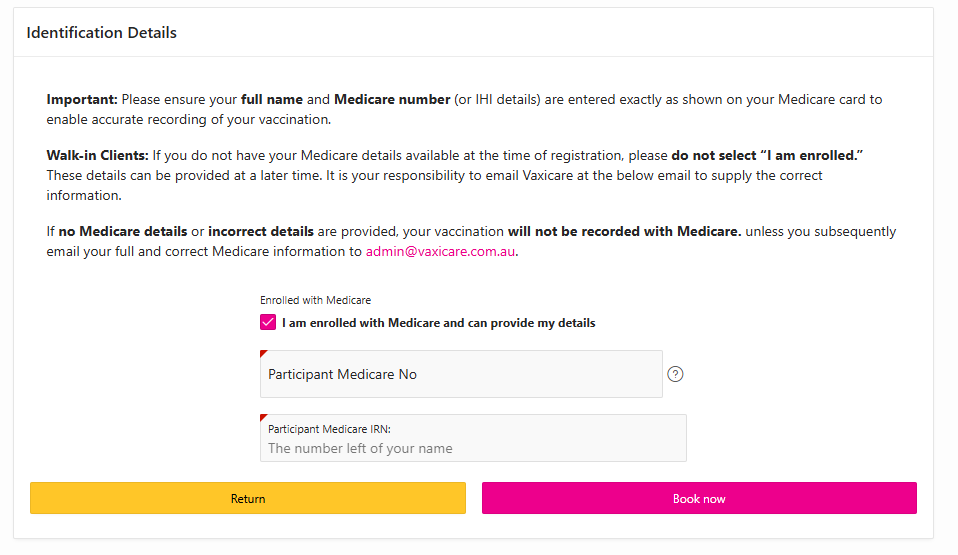
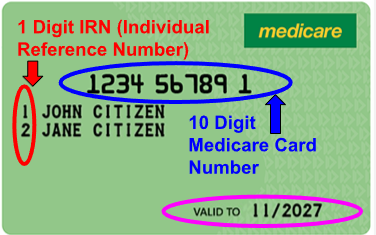
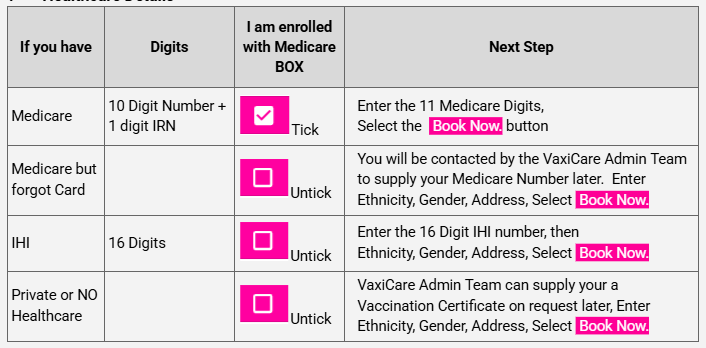
Identification Details for Medicare
If you have Medicare, supply the Card Details and select the pink Book Now Button
If not on Medicare
Untick the Enrolled with Medicare Box, a new screen requesting details will appear. Complete the details requested, ignore the request for an IHI Number. Private Health Care Details are not accepted. Select the Book Now Button
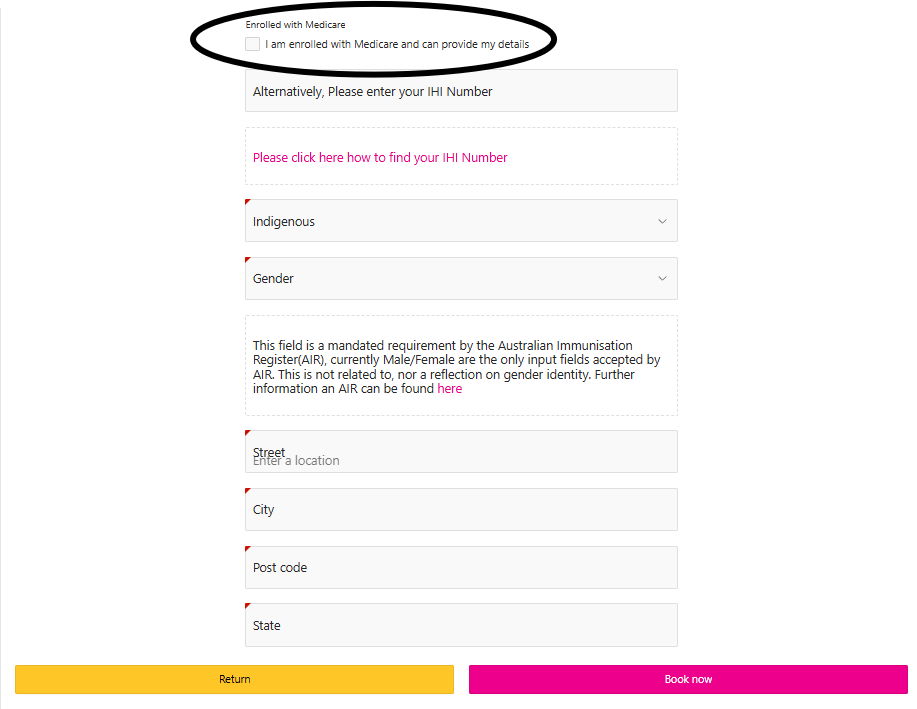
Health Care Details
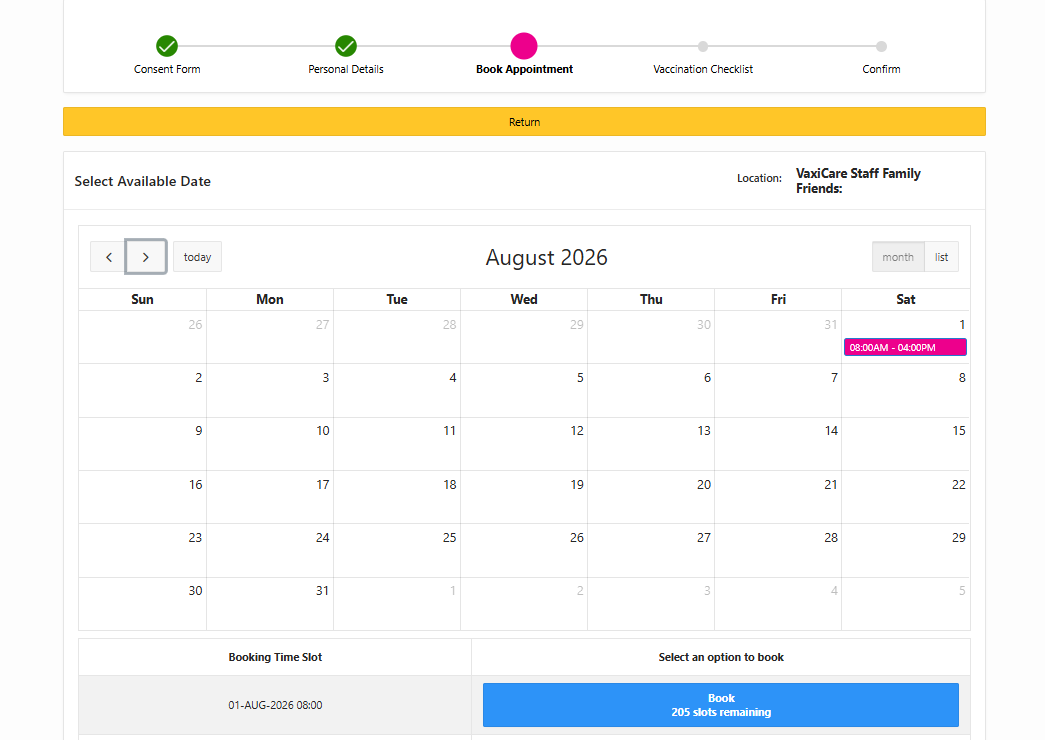
Book an Appointment
Select the Blue Button at the bottom to book an appointment Time for the Date shown on the Calendar, then Confirm the Booking.
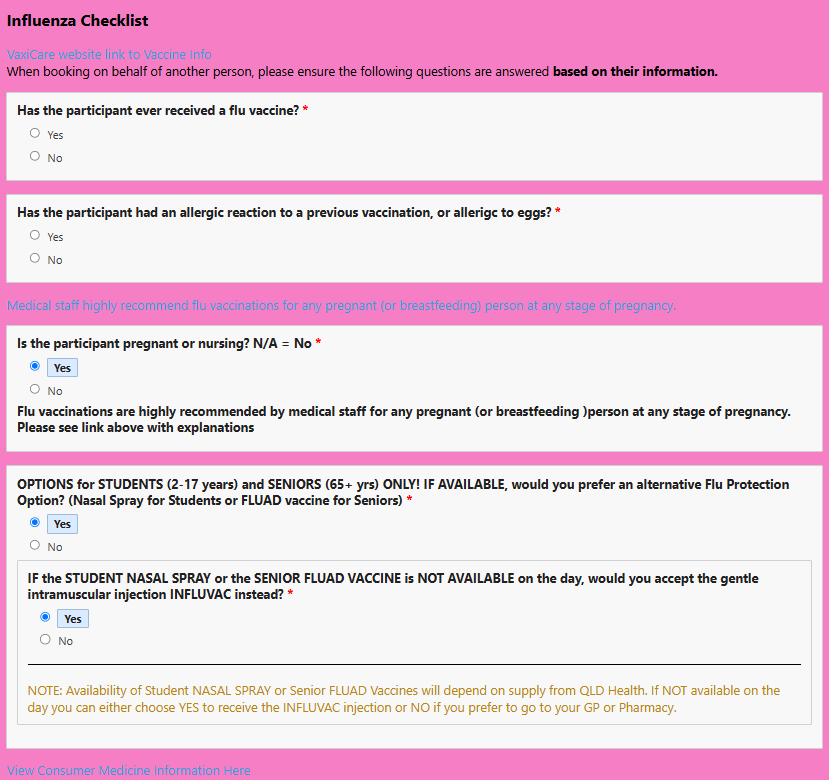
Complete the Checklist / Consent Form
Complete your Checklist / Consent Form, note the links that supply detailed medical information.
Finalise the Checklist
Select the pink Save button at the bottom to complete the Checklist.
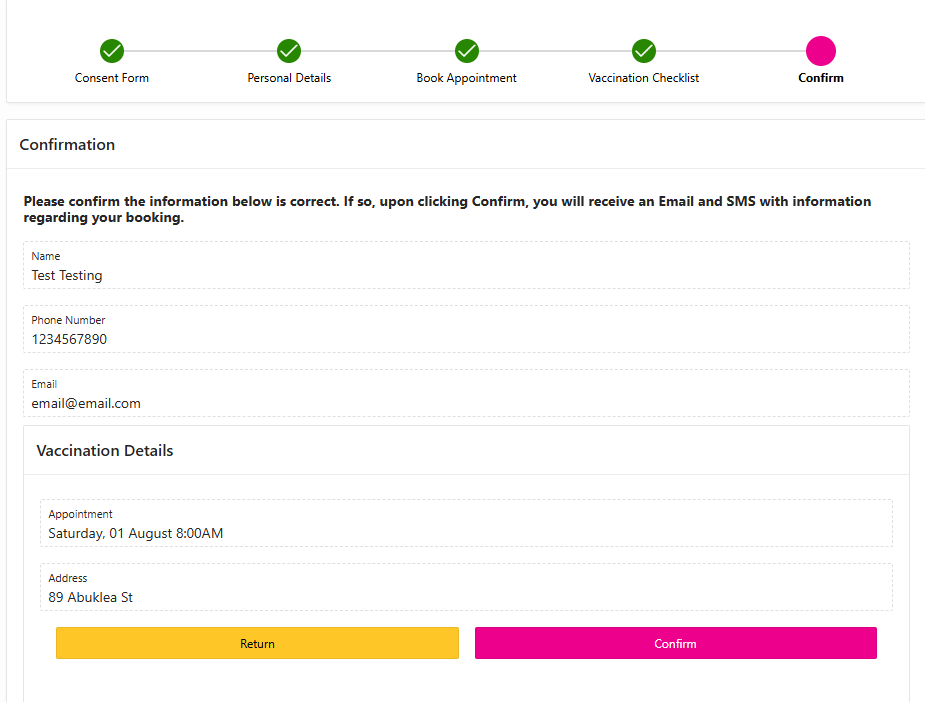
Confirm the Booking
Select the pink Confirm button at the bottom. An email and SMS will be sent to you as confirmation.